
How to Create a QR Menu for Your Restaurant in Under 10 Minutes (Step-by-Step Guide)
A practical guide to creating a free QR menu for your restaurant from scratch. Learn how to build a QR code menu using a restaurant menu management dashboard — no technical experience needed.
How to Create a QR Menu for Your Restaurant — Step by Step
Creating a QR menu isn't complicated and doesn't require any technical background. If you know how to use a smartphone and type on a keyboard, you can build a professional QR menu for your restaurant in under 10 minutes.
In this guide, we'll walk through the entire process together — from signing up to the moment you place the code on your tables.
Before You Start — What Do You Need?
Not much. Here's the complete list:
- An email address to register with
- Your menu items — names, descriptions, and prices
- Photos of your dishes (optional — you can add these later)
- 10 minutes
That's it. No design software, no coding, no upfront payment.
Step 1: Create a Free Account
The first step is creating a free QR menu on DG Menus.
- Go to the website and click "Get Started Free"
- Enter your email and create a password
- Enter your restaurant's name — this will appear on the menu your customers see
Registration takes under a minute, and no credit card is required.
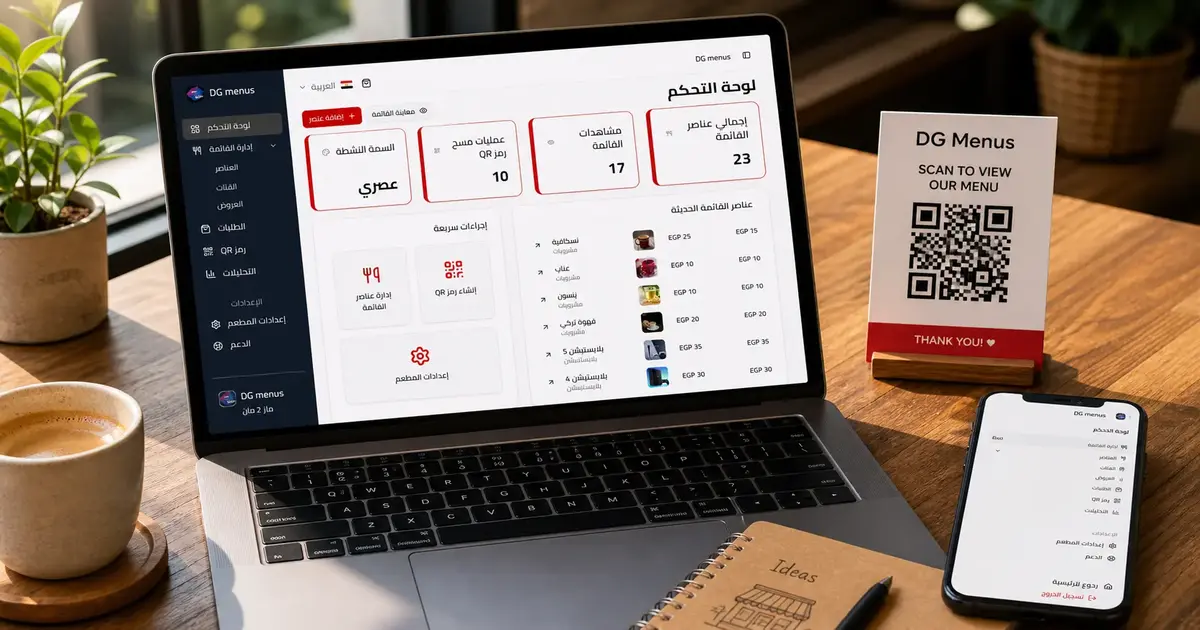
After signing in, you'll land on the management dashboard — this is where you'll control everything about your menu.
Step 2: Create Your Menu
Once inside the restaurant menu management dashboard, you'll find a "Create New Menu" button.
Click it and you'll be prompted to enter:
- Menu name: for example, "Lunch Menu" or "Main Menu"
- Display language: English, Arabic, or both
- Currency: USD, EGP, SAR, AED, etc.
In two minutes, your menu shell is created and ready to be filled with content.
Step 3: Add Sections and Items
This is where you build out the actual menu. The dashboard lets you organize everything into sections:
- Starters
- Main Courses
- Drinks
- Desserts
- Special Offers
For each section, you add items with the following details:
- Item name (in one or multiple languages)
- Description: a line or two about the dish and its ingredients
- Price
- Photo: upload an image of the dish — this makes a significant difference in how often items get ordered
You don't need to add every item in one sitting. Start with your 10–15 most popular dishes and add the rest gradually.
Step 4: Customize Your Menu's Look
Once your items are in, it's time to make the menu reflect your restaurant's identity.
In the "Customize" section you can adjust:
- Colors to match your brand palette
- Your restaurant logo
- Font style
- A cover image for the top of the menu
If your restaurant already has a visual identity — a logo with specific colors — you can apply it to the menu in minutes.
Step 5: Get Your QR Code
This is the key moment. Once your menu is built and styled, head to the "QR Code" section.
You'll find your unique QR code ready to download in several formats:
- PNG: for printing on table stands
- SVG: for high-resolution large-format printing
- PDF: easy to print directly
Download the code and print it. You can take it to any local print shop, or print it yourself at home on card stock.
Step 6: Place the Code in Your Restaurant
Your code is printed — now it's time to display it. There are several options:
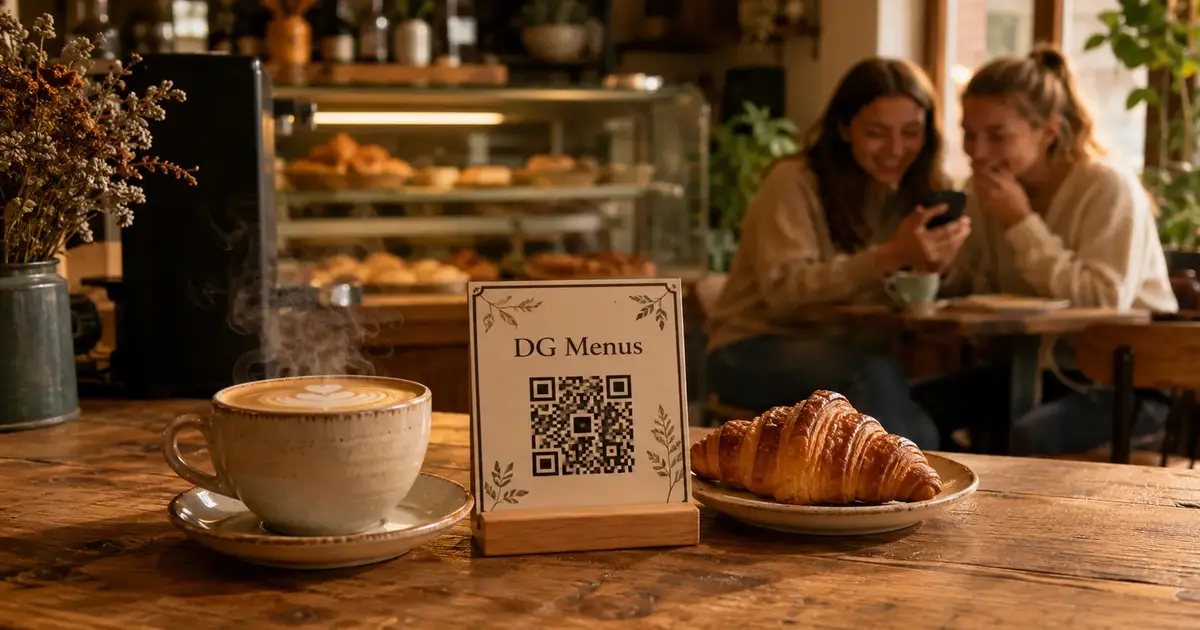
- A small stand in the center of the table: the most popular and polished option
- A sticker on the table surface: practical and durable
- A small card alongside your welcome note or cutlery holder
- On an existing paper menu as a supplement
After Launch: How to Update Your Menu
This is the most important part. Once your menu is live, updating it is effortless:
- Open the dashboard on your phone or computer
- Find the item or section you want to edit
- Change the price, name, description, or photo
- Click "Save"
Done. The change appears on customers' phones instantly — without needing to reprint anything or replace any QR codes. The code on the table always points to the latest version of your menu.
Frequently Asked Questions
Q: Can I really build a menu in under 10 minutes?
A: Yes, if you have your item names and prices ready. The steps are straightforward and the dashboard is designed to be fast. Ten minutes is a realistic estimate for a menu with 20–30 items.
Q: Do I need any technical or design experience?
A: None at all. The dashboard is built for restaurant owners, not developers. If you can use WhatsApp, you can use the dashboard.
Q: Can I create multiple menus — for example, a lunch menu and a dinner menu?
A: Yes. You can create multiple menus for the same restaurant and choose which one is active at any given time, or schedule them to switch automatically.
Q: What happens to the QR code if I update the menu?
A: Nothing changes. The QR code always points to the current version of your menu. You print the code once and updates happen in the dashboard — the code itself never needs to be reprinted.
Q: Can I add descriptions in multiple languages?
A: Yes. The menu supports multiple languages. You can write item names and descriptions in any language you choose.
Ready to Get Started?
Creating a QR menu for your restaurant doesn't get simpler than this. Six steps, ten minutes, and you have a professional digital menu ready to go.
Try DG Menus today — the trial is completely free and no credit card is required.
Read Next
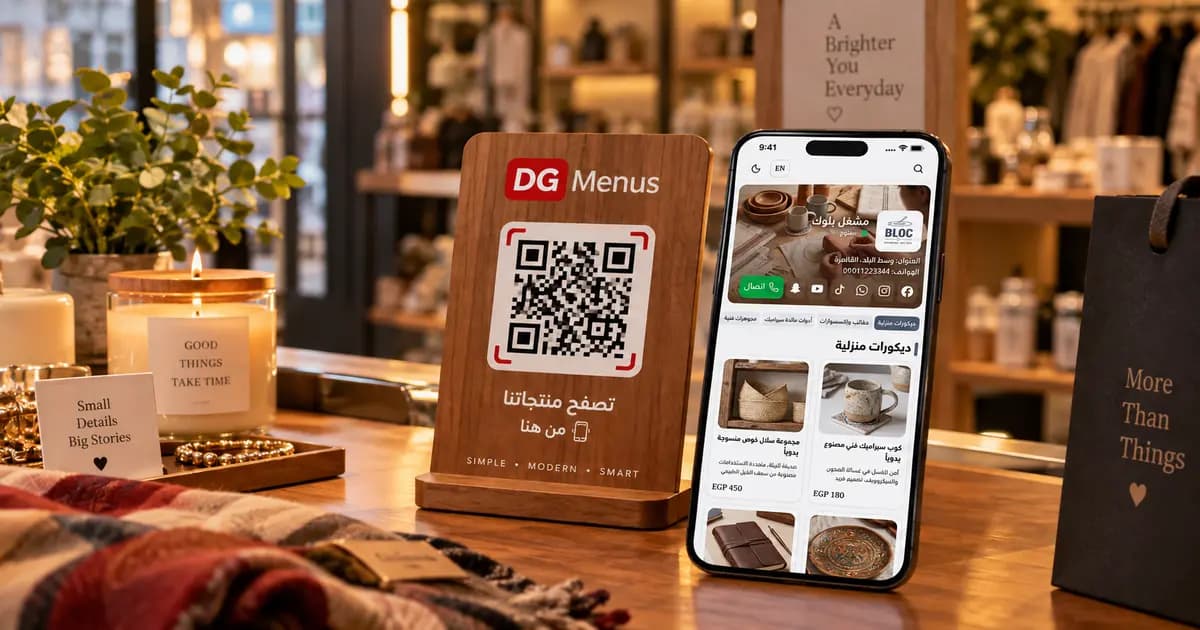
QR Menus Aren't Just for Restaurants: How Any Business Can Use One in 2026
The QR menu concept has grown far beyond restaurants and cafés. Learn how showrooms, home kitchens, dessert shops, and online stores can all use the same digital catalog idea.
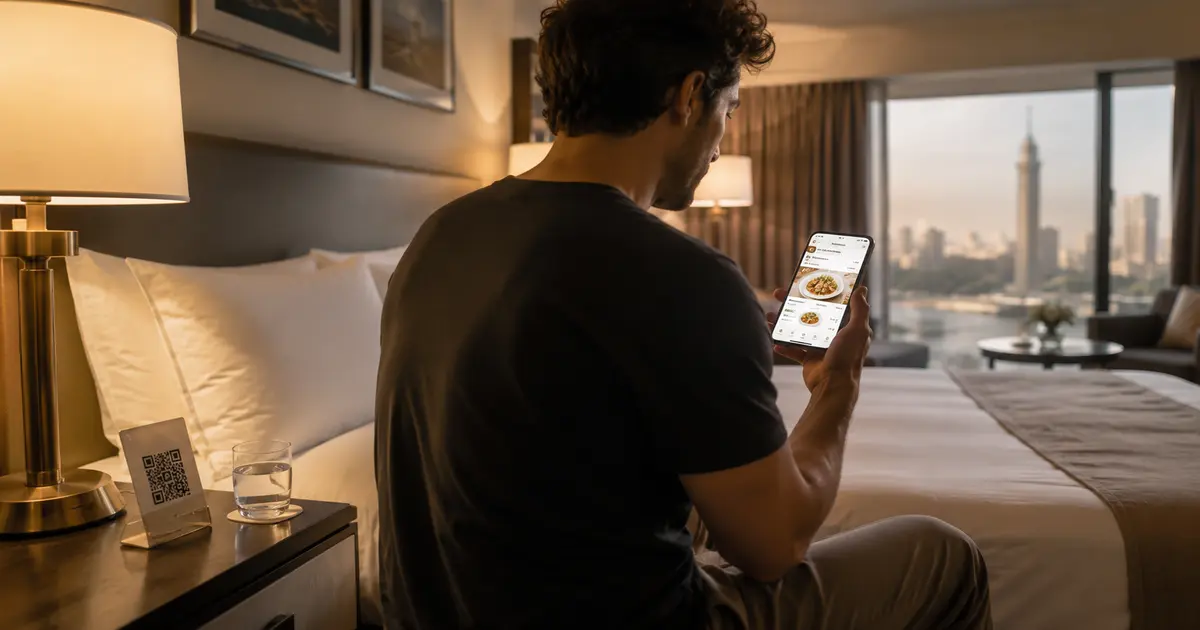
QR Menu for Hotels: Better Guest Experience and Lower Printing Costs
Discover how a hotel QR menu improves the guest experience and cuts printing costs. A complete guide to implementing a digital menu hotel solution across guest rooms, restaurants, and room service.
Barcode Menu for Restaurants and Cafés — Everything You Need to Know
The complete guide to barcode menus for restaurants and cafés: how they work, the difference between a barcode and QR code, and how to activate QR food ordering with WhatsApp order receiving for any type of venue.